
Binance – API Import Guide
This guide explains how to create and bind a Binance API Key to your trading platform safely.
By connecting your Binance account via API, you can enable automated trading, strategy execution, and account data synchronization without exposing your funds.
YouTube Video Guide
⚠️ Important Notes Before You Start
Before creating an API Key, please read carefully:
- ✅ API keys do not allow withdrawals (if configured correctly)
- ❌ Never share your API Key and Secret
- 🔐 Always restrict permissions and IP addresses if possible
- 🧠 Recommended: use a dedicated sub-account for API trading
Step 1: Log in to Binance
- Visit the official Binance website
👉 https://www.binance.com - Log in with your account credentials
- Make sure 2FA is enabled
📸 Screenshot Example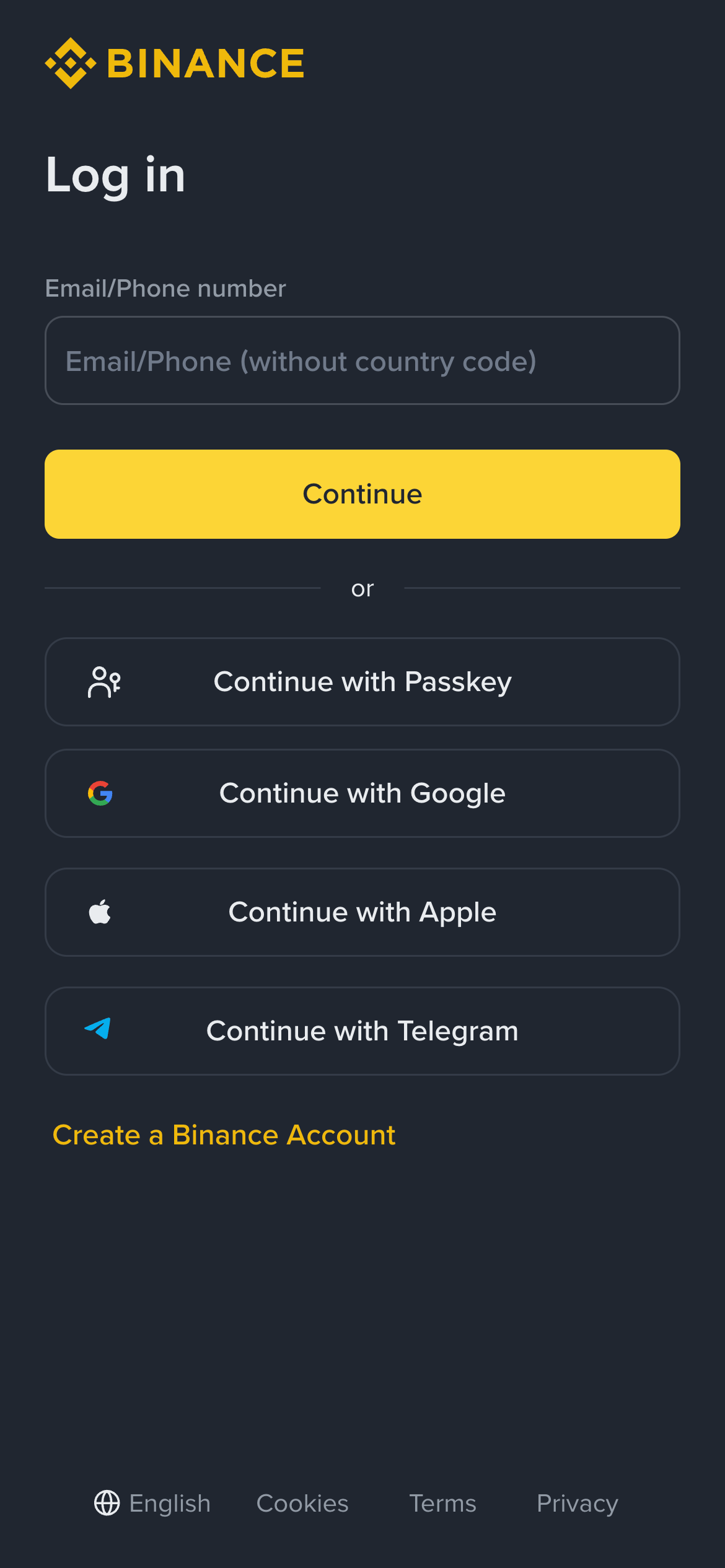
Step 2: Navigate to API Management
- Click your profile avatar (top-right corner)
- Select API Management
📸 Screenshot Example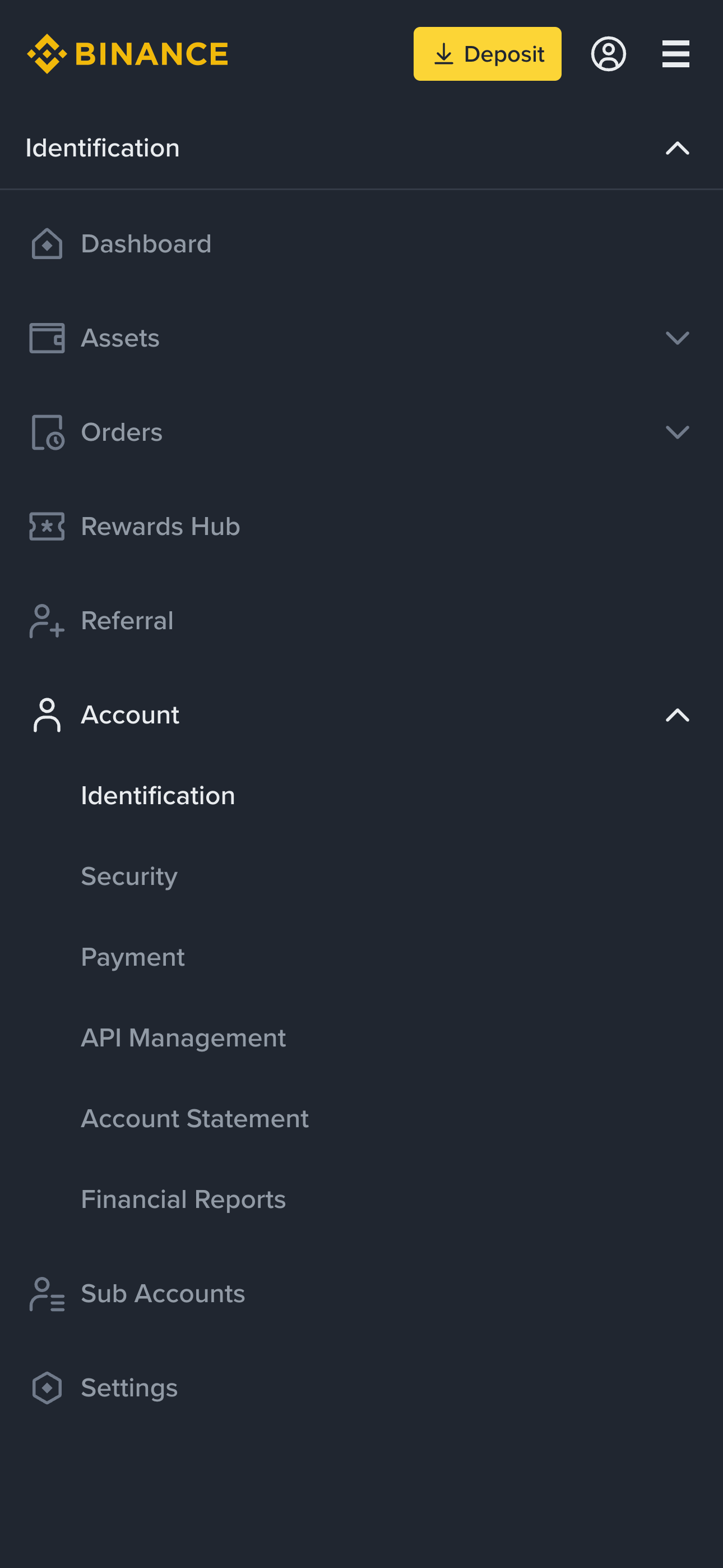
Step 3: Create a New API Key
- Enter an API Key Label, for example:
- Choose System generated API key
- Complete email and 2FA verification
- Binance will generate:
- API Key
- Secret Key (⚠️ shown only once)
📸 Screenshot Example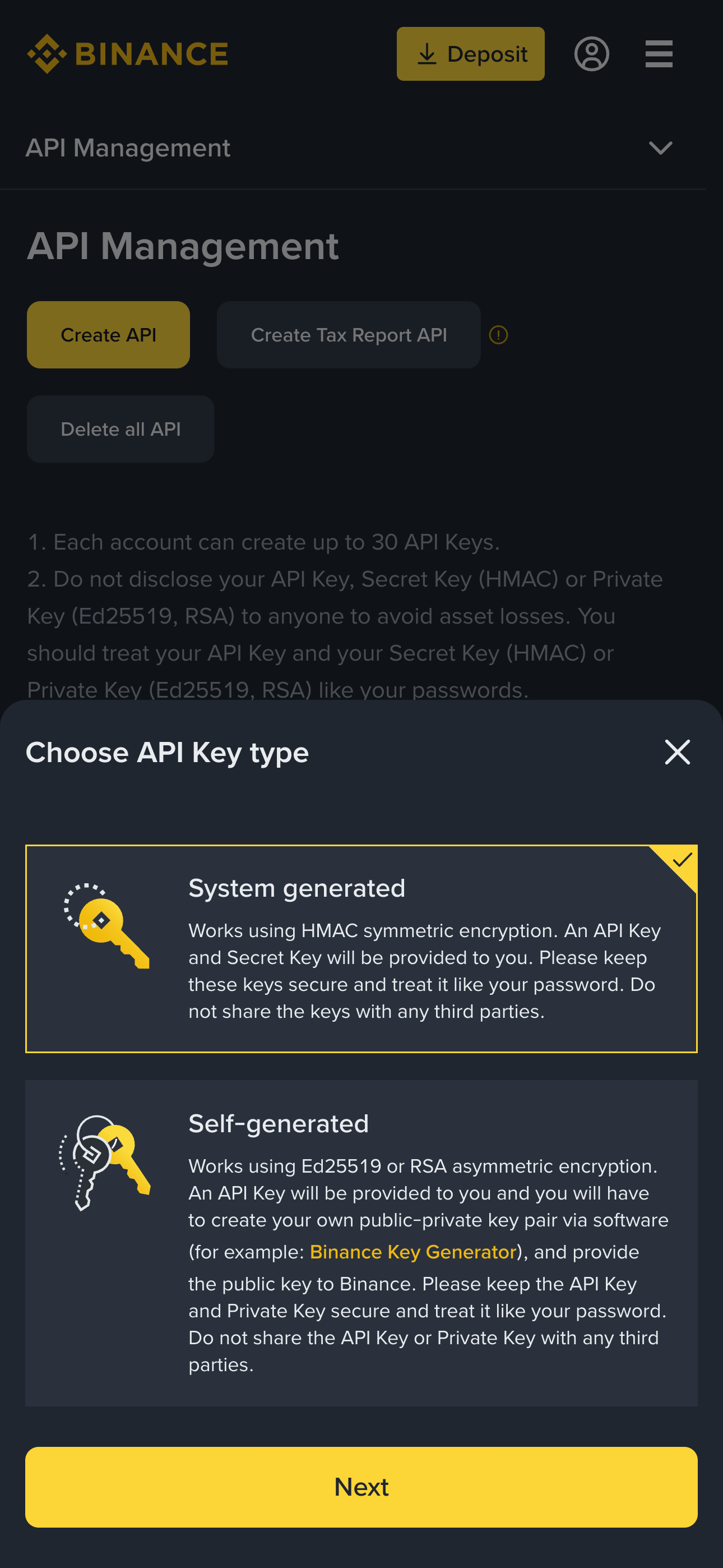
⚠️ Save the Secret Key securely.
If lost, you must delete and recreate the API.
Step 4: Configure API Permissions (Very Important)
Configure permissions carefully to ensure security.
✅ Required Permissions
- ☑️ Enable Reading
- ☑️ Enable Spot & Margin Trading (for spot strategies)
- ☑️ Enable Futures (for futures strategies)
❌ Must Be Disabled
- ⛔ Enable Withdrawals
- ⛔ Enable Universal Transfer
📸 Screenshot Example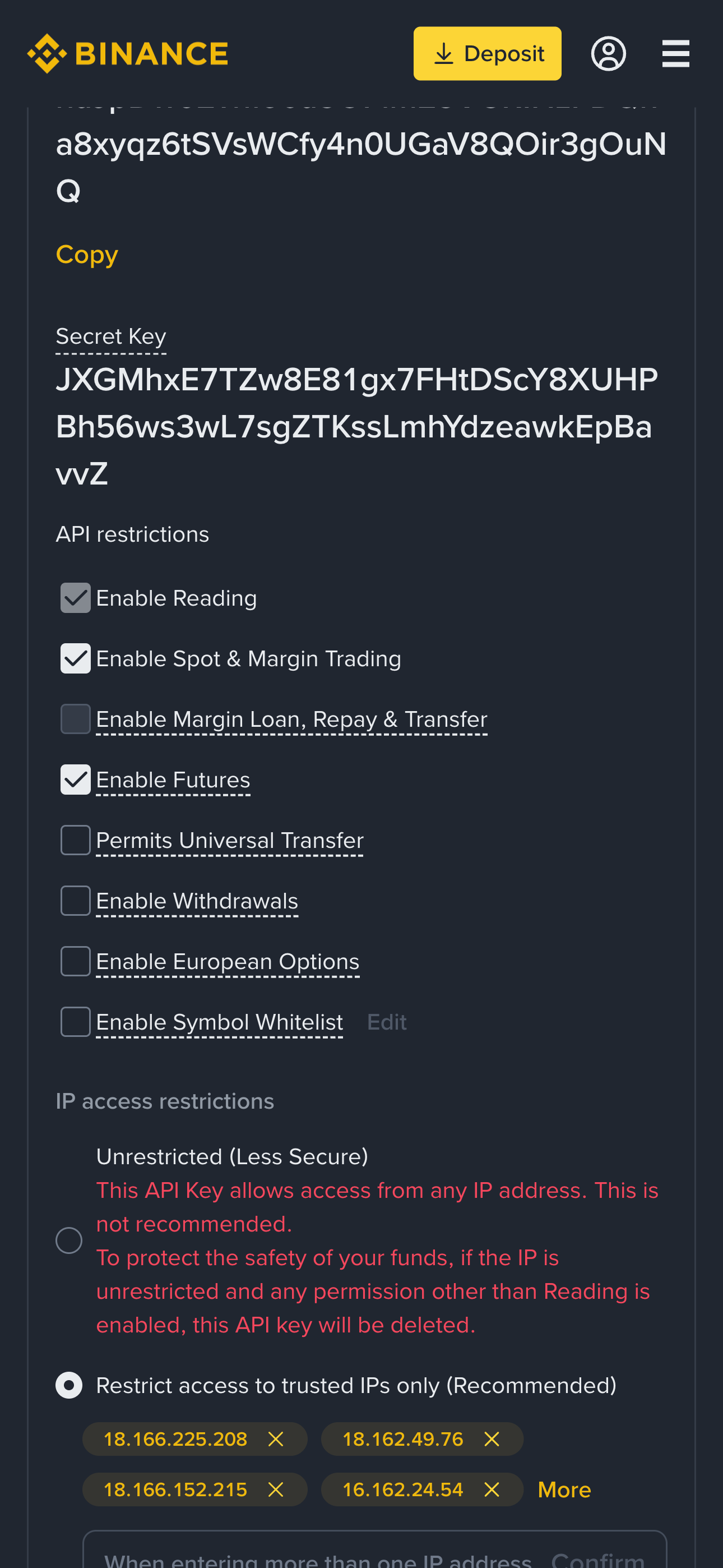
Step 5: Set IP Access Restrictions (Recommended)
- Enable Restrict access to trusted IPs only
- Add the platform’s official IP addresses
(provided by your trading platform)
📸 Screenshot Example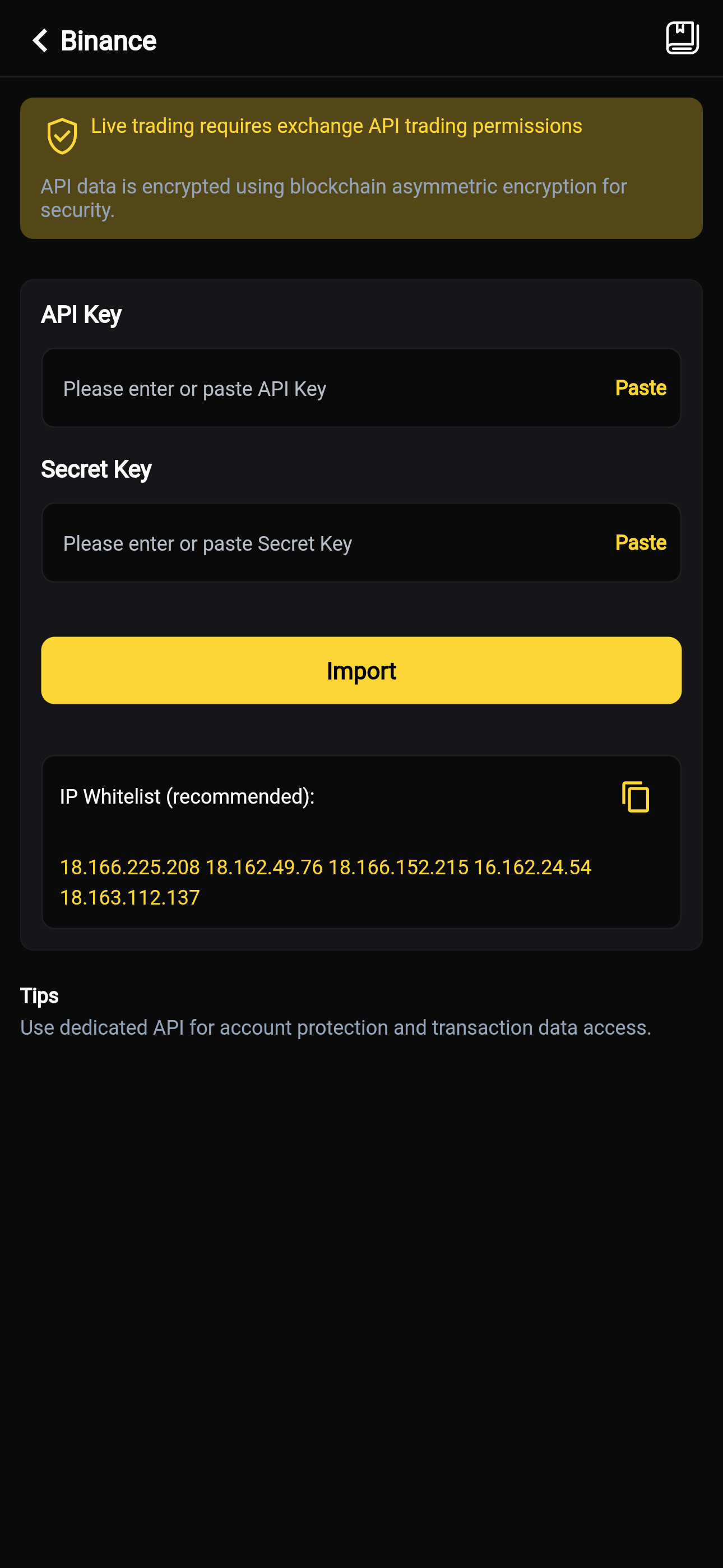
If you do not have IP addresses yet, you may temporarily choose
Unrestricted, then update later.
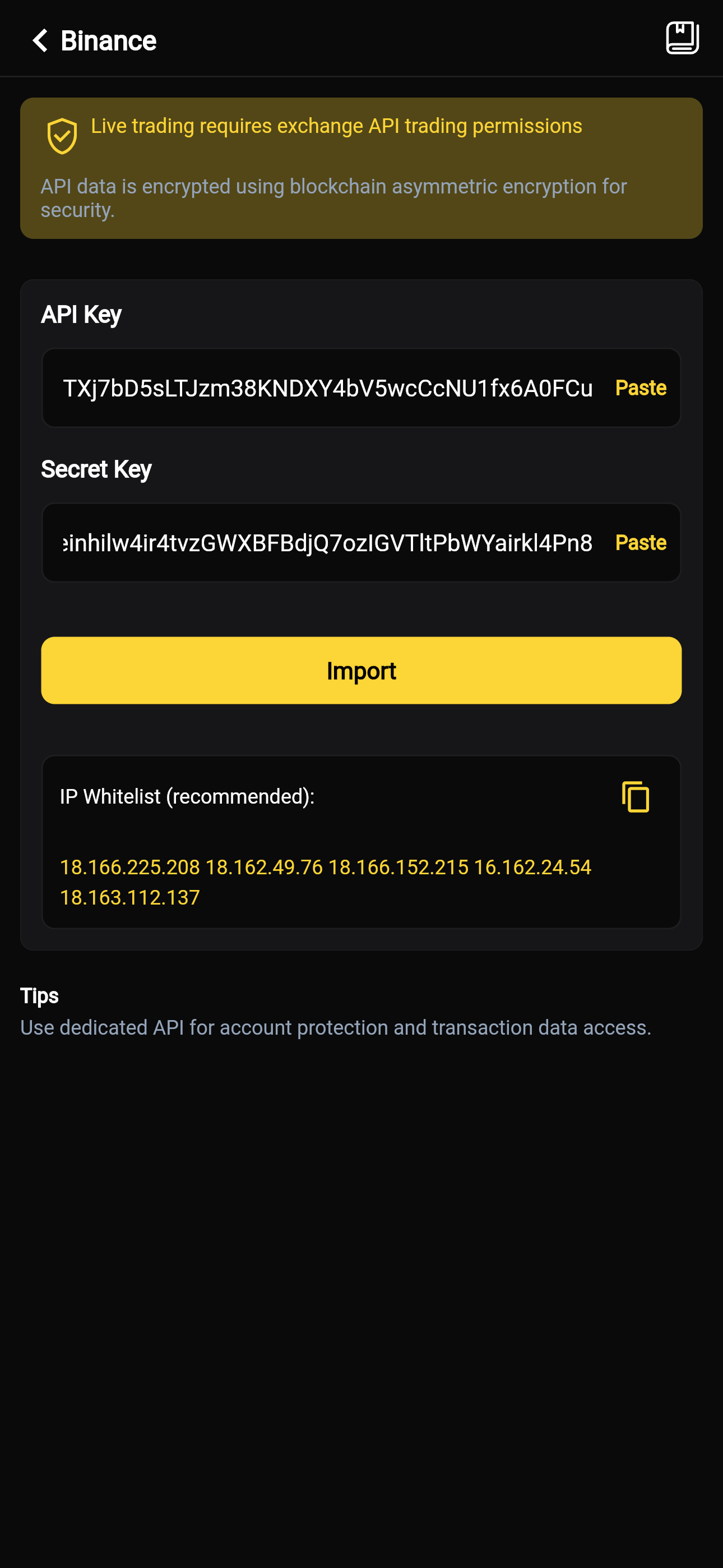
Step 6: Bind API Key on the UFOX Trading Platform
- Go to UFOX Home Page → API
- Select Binance as the exchange
- Enter:
- API Key
- Secret Key
- Select trading scope:
- Spot / Futures / Both
- Click Bind / Connect
📸 Screenshot Example
Step 7: Verify Connection Status
After successful binding, you should see:
- ✅ API Status: Connected
- 📊 Account balance synchronized
- 🤖 Trading bots available
📸 Screenshot Example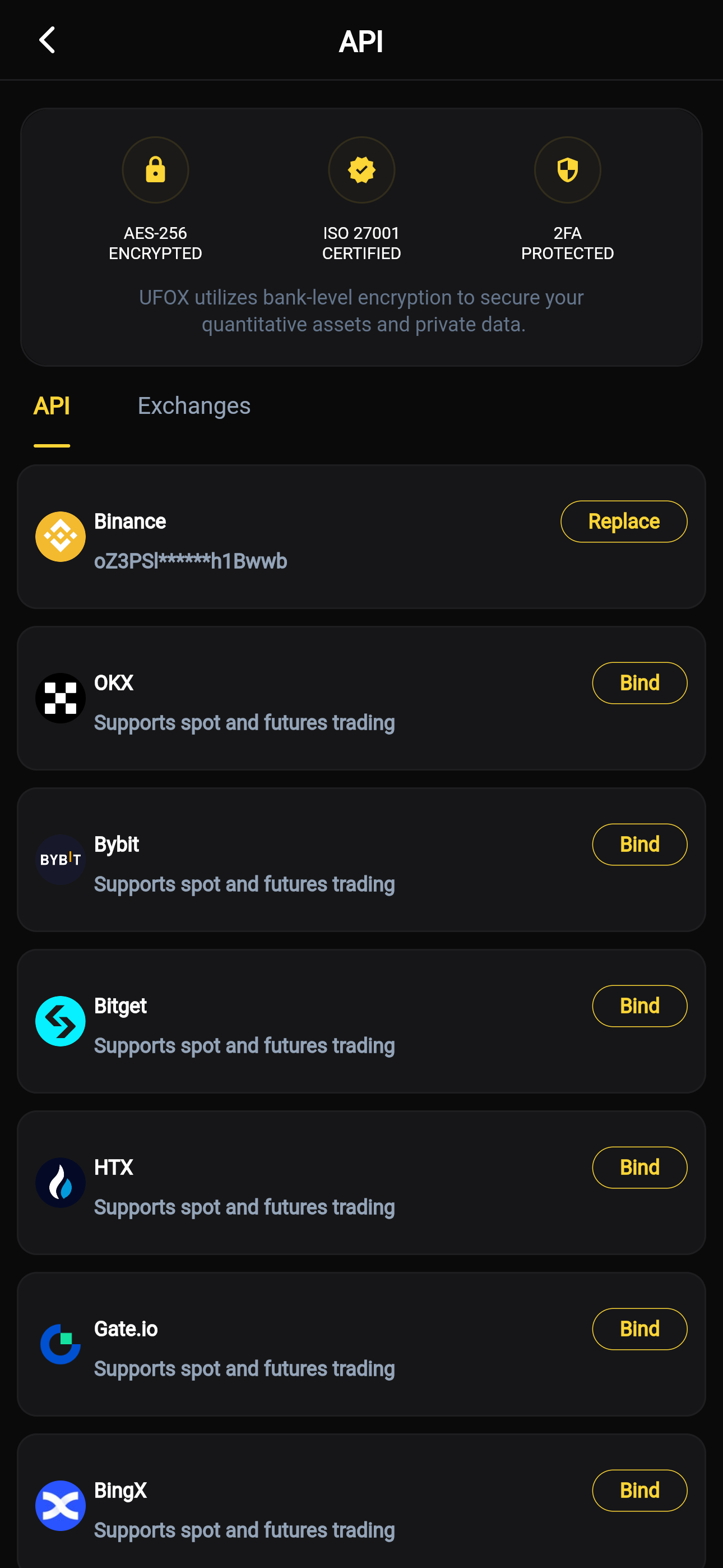
Common Errors & Solutions
❌ Invalid API Key or Secret
- Check for extra spaces
- Ensure the secret key is correct
- Recreate the API if needed
❌ Permission Denied
- Ensure trading permissions are enabled
- Futures bots require Futures permission
- Spot bots require Spot trading permission
❌ IP Not in Whitelist
- Add the platform IP to Binance whitelist
- Or disable IP restriction temporarily
Security Best Practices
- 🔐 Use a sub-account for API trading
- 🔄 Rotate API keys periodically
- 👀 Monitor API activity logs on Binance
- 🛑 Delete API immediately if abnormal activity is detected
FAQ
Can the platform withdraw my funds?
No. Withdrawal permission must remain disabled.
Can I bind one API key to multiple platforms?
Not recommended. Use one API per platform for security.
Can I modify API permissions later?
Yes. Permissions can be updated anytime in Binance API Management.
🎯 Finished
Your Binance account is now successfully connected.
You can start automated trading with full control and security.
For more guides, please refer to other exchange API import documentation.