
BingX – API Import Guide
This guide explains how to create and bind a BingX API Key to your trading platform.
By connecting your BingX account via API, you can enable automated trading, market data access, and real‑time account synchronization securely.
⚠️ Important Notes Before You Start
Before creating an API key on BingX, please note:
- BingX supports APIs for Spot & Perpetual Futures trading.
- Each main account and sub‑account can hold up to 20 active API keys.
- Keep your API key and secret confidential; linking your API key to IP addresses enhances security.
- API keys with trading permissions that are not bound to an IP and remain inactive for 14 days may be automatically deleted.
Step 1: Log in to BingX
- Visit the official BingX website
👉 https://www.bingx.com - Log in with your account credentials
- Ensure 2FA (Google Authenticator / SMS) and KYC are completed if required
📸 Screenshot Example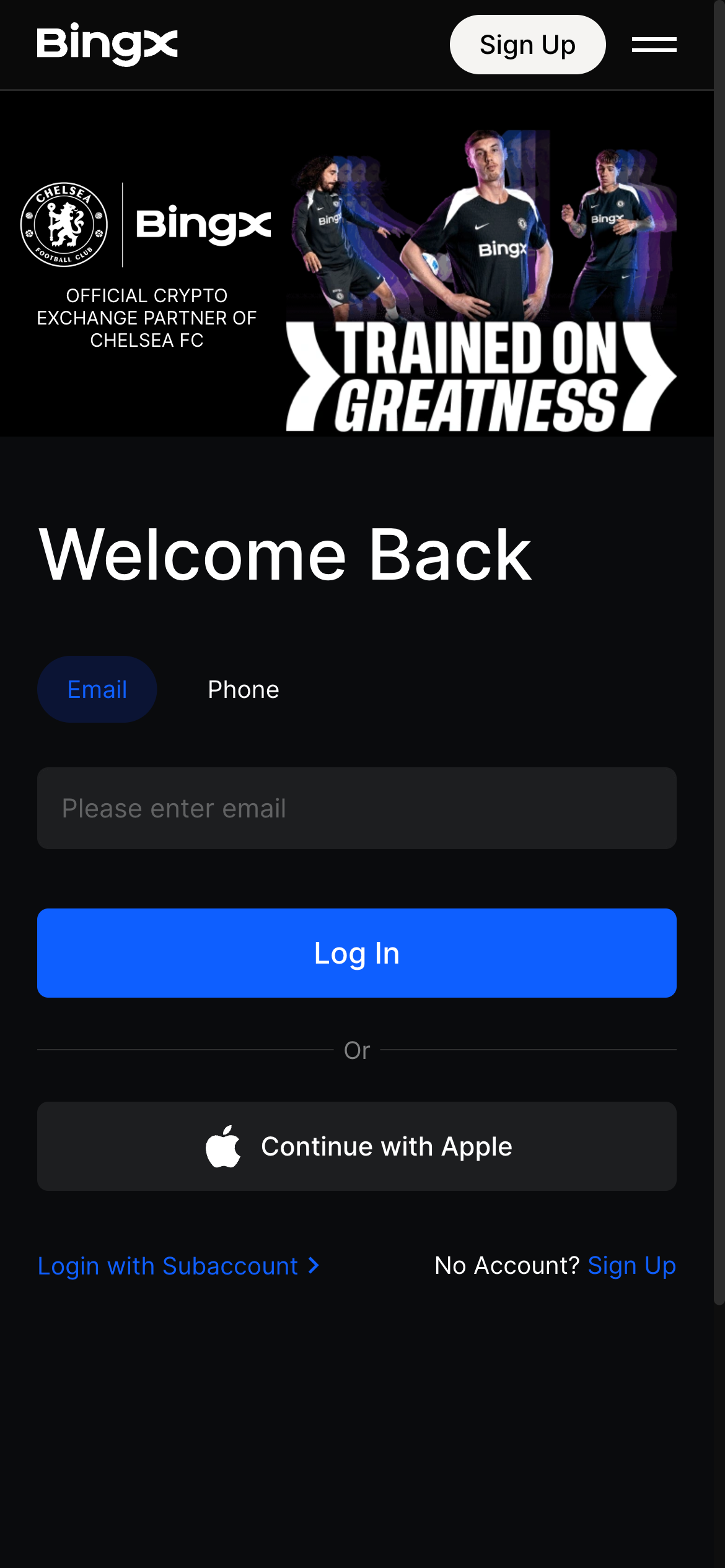
Step 2: Navigate to API Management
- Click your profile avatar (top‑right corner)
- Click API Management in the dropdown
Step 3: Create a New API Key
- Click Create API
- Enter an API Name/Label (e.g.,
UFOX‑BingX‑API) - Select permissions based on your usage:
- ☑️ Read – allows querying account & market data
- ☑️ Spot Trading – execute spot orders
- ☑️ Perpetual Futures Trading – execute futures orders
- Optionally enable IP Whitelisting and add trusted IP addresses
You may bind up to 20 IP addresses per API key to enhance security.
Step 4: Complete Security Verification
- Enter your Email verification code
- Enter your 2FA (Authenticator / SMS) code
After verification, BingX will show:
- API Key
- Secret Key (⚠️ shown only once — save it securely)
⚠️ The Secret Key is only shown once; save it safely.
Avoid taking public screenshots or storing it in unprotected note apps.
Step 5: Bind the API Key on Your Platform
- Go to Account → API Management on your trading platform
- Select BingX as the exchange
- Enter:
- API Key
- Secret Key
- Choose trading authorization scopes (Spot / Futures / Both)
- Click Bind / Connect
Step 6: Verify API Connection
After binding:
- ✅ API Status: Connected / Active
- 📊 Account balance and positions sync
- 🤖 Trading/strategies can operate
Common Errors & Solutions
❌ Invalid API Key / Secret
- Verify there are no extra spaces when copying keys
- Ensure correct key is used (main vs subaccount)
❌ Permission Denied
- Confirm Spot Trading or Perpetual Futures Trading permissions are enabled
- For futures trading, ensure that futures account is activated on BingX
❌ IP Restriction Error
- Add platform provided IPs to whitelist
- Or temporarily disable IP whitelist for testing
Security Best Practices
- 🔐 Enable IP Whitelist for API keys
- 🔄 Rotate keys periodically
- 🚫 Do not enable risky permissions unless necessary
- 🛑 Delete API keys immediately if compromised
FAQ
How long are BingX API keys valid?
API Keys with read-only or IP Whitelisted permissions do not expire.
Keys with trading permissions and no IP whitelist may be auto‑deleted if inactive for 14 days.
Do I need to bind IP addresses?
Yes — binding trusted IPs improves security and prevents automatic deletion for active trading keys.
Can I modify permissions later?
Yes — you can edit permissions, whitelist, and settings anytime from API Management.
🎯 Finished
Your BingX account is now connected securely via API.
You may begin automated trading or build strategies as needed.
For more exchange API import guides, please refer to other documentation.