
Gate.io – API Import Guide
This guide explains how to create and bind a Gate.io API Key (API v4) to your trading platform.
By connecting your Gate.io account via API, you can enable automated trading, real‑time account synchronization, and strategy execution securely.
⚠️ Important Notes Before You Start
Before creating an API key, please note:
- Gate.io supports API v4 keys — recommended for full spot, margin, and futures API access.
- You can create multiple API Keys per account, each with independent permissions and IP whitelist.
- Strongly recommended to enable IP Whitelist for production use — unbound keys may expire after 90 days.
- You must have 2FA (Two‑Factor Authentication) enabled.
- Keep API Key, Secret, and Passphrase secure — the secret will only be shown once.
Step 1: Log in to Gate.io
- Open your browser and navigate to
👉 https://www.gate.io - Log in to your account using your credentials.
- Ensure Two‑Factor Authentication (2FA) is enabled.
📸 Screenshot Example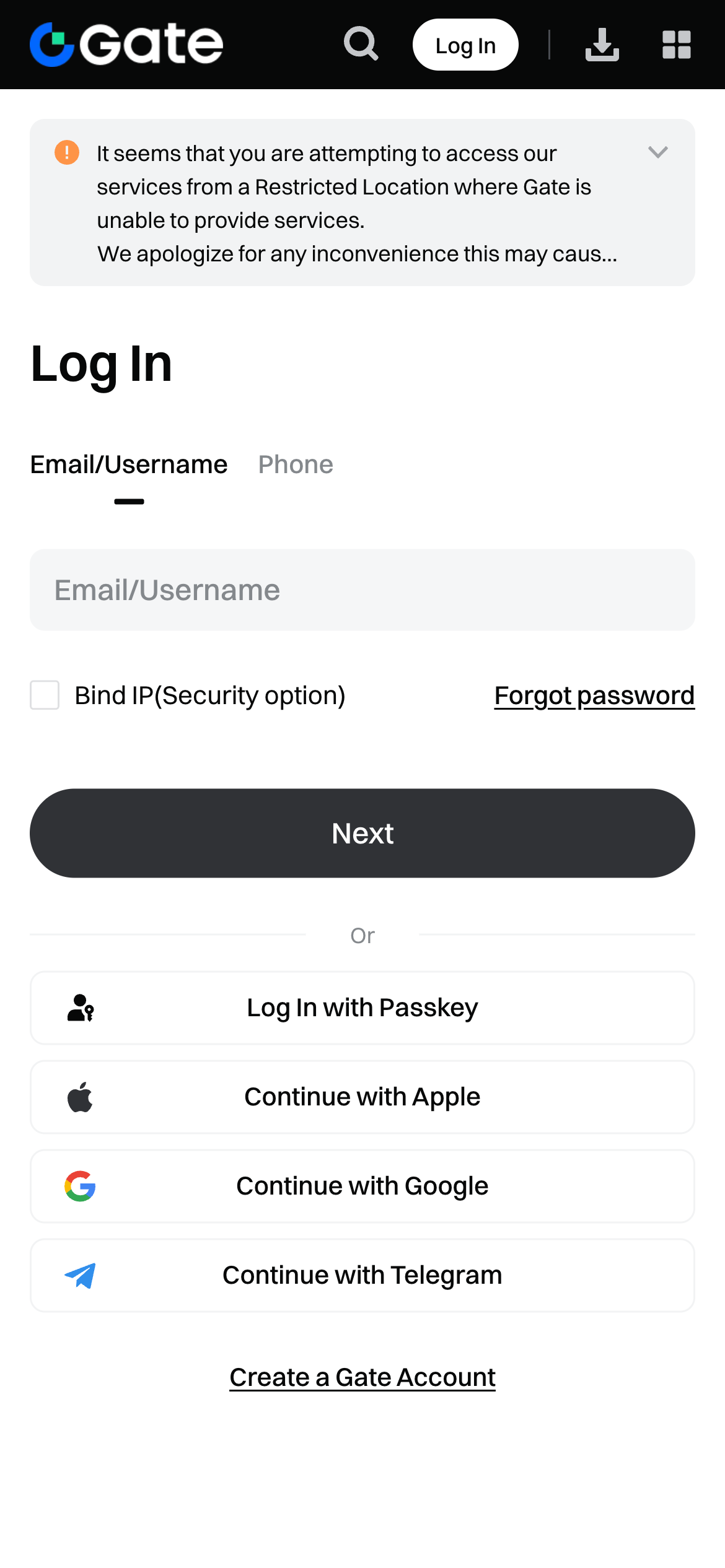
Step 2: Navigate to API Management
- Click your profile avatar in the top‑right corner.
- Select API Management → You will see your API key dashboard.
Step 3: Create a New API Key (v4)
- Click Create API Key.
- In the API Key Remark field, enter a label such as
UFOX-GateIO-API. - IP Permissions:
- Recommended: choose Bind IP and enter the platform’s official IPs when provided (adds best security).
- If IPs are unknown, you may temporarily choose Disable (non‑IP keys expire after 90 days).
- Select API v4 Key as the key type.
- Choose Account Type (e.g., Classic / Unified).
- Configure Permissions for your strategies:
- ☑️ Spot Trade – Read & Write
- ☑️ Perpetual Futures – Read & Write (if using derivatives)
- ☑️ Wallet – Read & Write (optional but recommended for balance sync)
- ⛔ Withdraw – Only enable for special use cases with strict IP controls
Step 4: Risk Notice & Verification
- After configuring permissions, click Submit.
- A Risk Reminder will appear — read carefully and check acknowledgements.
- Enter your Funds Password and complete 2FA verification.
Step 5: Save API Credentials
After successful creation, Gate.io will display:
- API Key
- Secret Key
⚠️ The Secret Key is shown only once — save it securely.
Step 6: Bind API Key on the Trading Platform
- Go to your trading platform’s Account → API Management.
- Select Gate.io as the exchange.
- Enter:
- API Key
- Secret Key
- (Optional) Passphrase (if platform requires)
- Choose trading scope:
- Spot / Futures / Both
- Click Bind / Connect.
Step 7: Verify Connection Status
After binding, you should see:
- ✅ API Status: Connected
- 📊 Account balance synced
- 🤖 Strategies/trading features activated
Common Errors & Solutions
❌ Invalid API Key / Secret
- Ensure the API key and secret are copied without spaces.
- Confirm you selected API v4 (not v2).
❌ Permission Denied
- Verify necessary permissions (Spot, Futures, Wallet) are enabled.
- Futures strategies require Perpetual Futures permission.
❌ IP Restriction Error
- Add the correct platform IP to the whitelist.
- Or temporarily remove restriction for testing.
Security Best Practices
- 🔐 Use IP Whitelist to restrict API access.
- 🔄 Rotate API keys routinely.
- 🚫 Disable unnecessary permissions (especially Withdraw).
- 🛑 Delete unused keys immediately.
FAQ
Why use API v4?
API v4 supports both spot and derivatives trading and offers more robust permission control than v2.
Can I modify API permissions later?
Yes — permissions, whitelist, and remarks can be updated anytime.
Do bound API keys expire?
Unbound API keys may expire after ~90 days; bounded ones typically do not expire automatically.
🎯 Finished
Your Gate.io account is now successfully connected via API.
You can start automated and AI Trading with confidence.
For more exchange API import guides, see the rest of the documentation.