
KuCoin – API Import Guide
This guide explains how to create and bind a KuCoin API Key to your trading platform.
By connecting your KuCoin account via API, you can enable automated trading, strategy execution, and real‑time account synchronization securely.
⚠️ Important Notes Before You Start
Before creating a KuCoin API Key, please note:
- KuCoin’s API Key system requires Key, Secret, and Passphrase — all three must be saved securely, as the Secret cannot be recovered once lost.
- API keys with trading permissions but no IP whitelist may be automatically disabled or deleted after 30 days of inactivity.
- To enable APIs effectively for trading/bots, you need to enable permissions and optionally use IP Whitelisting.
- Ensure Two‑Factor Authentication (2FA) is enabled on your account for API creation.
Step 1: Log in to KuCoin
- Visit the official KuCoin website
👉 https://www.kucoin.com - Log in with your credentials (email/phone + password)
- Ensure 2FA (Google Authenticator / SMS) is enabled
📸 Screenshot Example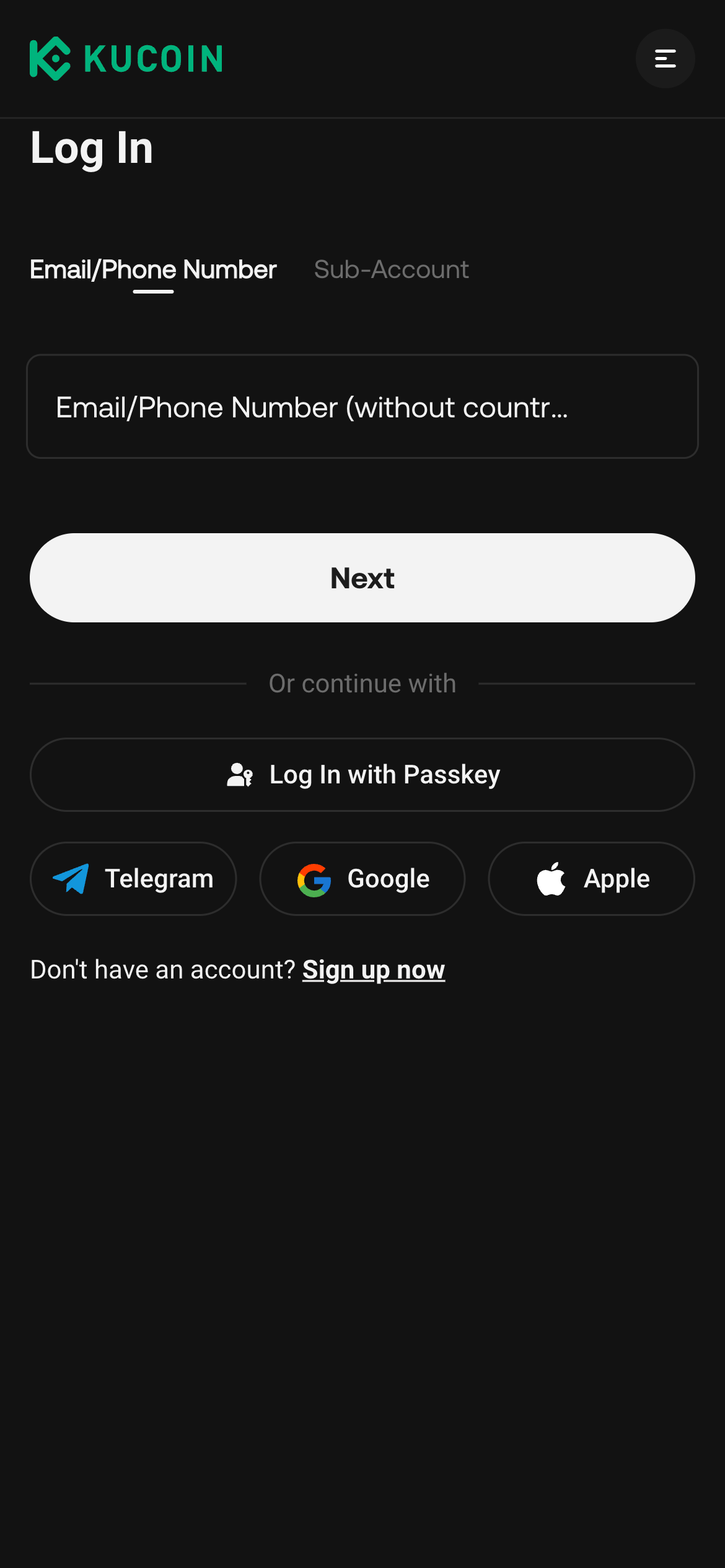
Step 2: Navigate to API Management
- Click your profile avatar (top‑right corner)
- Select API Management from the dropdown
📸 Screenshot Example
Step 3: Create a New API Key
- Click the Create API button
- In the popup, enter:
- API Name (e.g.,
UFOX‑KuCoin‑API) - API Passphrase — this is separate from your login password and will be used when connecting the API
- API Name (e.g.,
- Complete the prompt and proceed
📸 Screenshot Example
💡 The API passphrase is crucial — you will need it when binding the API on your platform.
Step 4: Configure API Permissions
On the API creation page, choose appropriate permissions based on your trading needs:
✅ Recommended Permissions for Trading
- ☑️ General – allows querying market and account info (read only)
- ☑️ Trade – allows placing and canceling orders (spot, futures)
- (Optional) ☑️ Margin Trade – enables margin trading
- (Optional & ⚠️) ☑️ Transfer – enables asset transfer and withdrawal (use with caution)
⚠️ Withdrawal/Transfer permissions should only be enabled if absolutely necessary and with strict IP whitelisting.
Step 5: Enable IP Whitelist (Recommended)
- Toggle IP Restriction to Yes
- Add the trusted IP addresses provided by your trading platform
- Click Add or Save
API keys with trading permissions and no whitelisted IPs may automatically lose trading access or be deleted after 30 days of inactivity.
Step 6: Security Verification
After setting permissions:
- Enter your Trading Password
- Enter Email Verification Code
- Enter 2FA Code
- Confirm the API creation
Once completed, KuCoin will display:
- API Key
- Secret Key
- Passphrase (the one you entered earlier)
⚠️ Save the Secret Key and Passphrase in a secure location; they will not be shown again.
Step 7: Bind API Key on Your Trading Platform
- Go to Account → API Management on your platform
- Select KuCoin as the exchange
- Enter:
- API Key
- Secret Key
- Passphrase
- Choose desired scopes:
- Spot / Futures / Margin
- Click Bind / Connect
Step 8: Verify API Connection Status
Once binding is complete, you should see:
- ✅ API Status: Connected
- 📊 Account balancing and sync
- 🤖 Trading strategies available
Common Errors & How to Fix
❌ Invalid API or Secret
- Ensure you copied the API Key, Secret, and Passphrase correctly
- Remove any spaces when pasting
- Recreate the API key if the Secret is lost
❌ Permission Denied
- Verify required permissions are enabled (e.g., Trade)
- Futures strategies require Futures/Derivatives permissions
❌ Whitelist Error
- Ensure the correct platform IPs are in the whitelist
- For testing, you can temporarily disable IP restriction
Security Best Practices
- 🔐 Use IP Whitelisting to limit access
- 🔄 Rotate API keys frequently
- 🚫 Disable unnecessary permissions (especially withdrawals)
- 🛑 Delete unused or compromised API keys immediately
FAQ
What is the API passphrase?
It’s a user‑defined password required along with the key and secret when authenticating KuCoin API requests.
Can I modify API permissions later?
Yes — permissions and whitelisted IPs can be updated at any time via the API Management page.
Will API expire?
API keys with trading enabled but without whitelisted IPs may be disabled after inactivity. Whitelisted keys generally remain active.
🎯 Finished
Your KuCoin API is now successfully created and connected.
You can now start automated trading and real‑time data sync securely.
For more API import guides, please check other exchange documentation.